Oneview

Everything between the raw table and the board on the wall.

Oneview covers the whole path: getting the data in, modelling it once, exploring it, presenting it as a dashboard, an app or a website, and sharing it safely. Here is each step in detail.

Bring the data from wherever it sits today.

Upload a workbook, connect a database, or let people type it in on the floor. Each source becomes a table that looks and behaves like a spreadsheet.
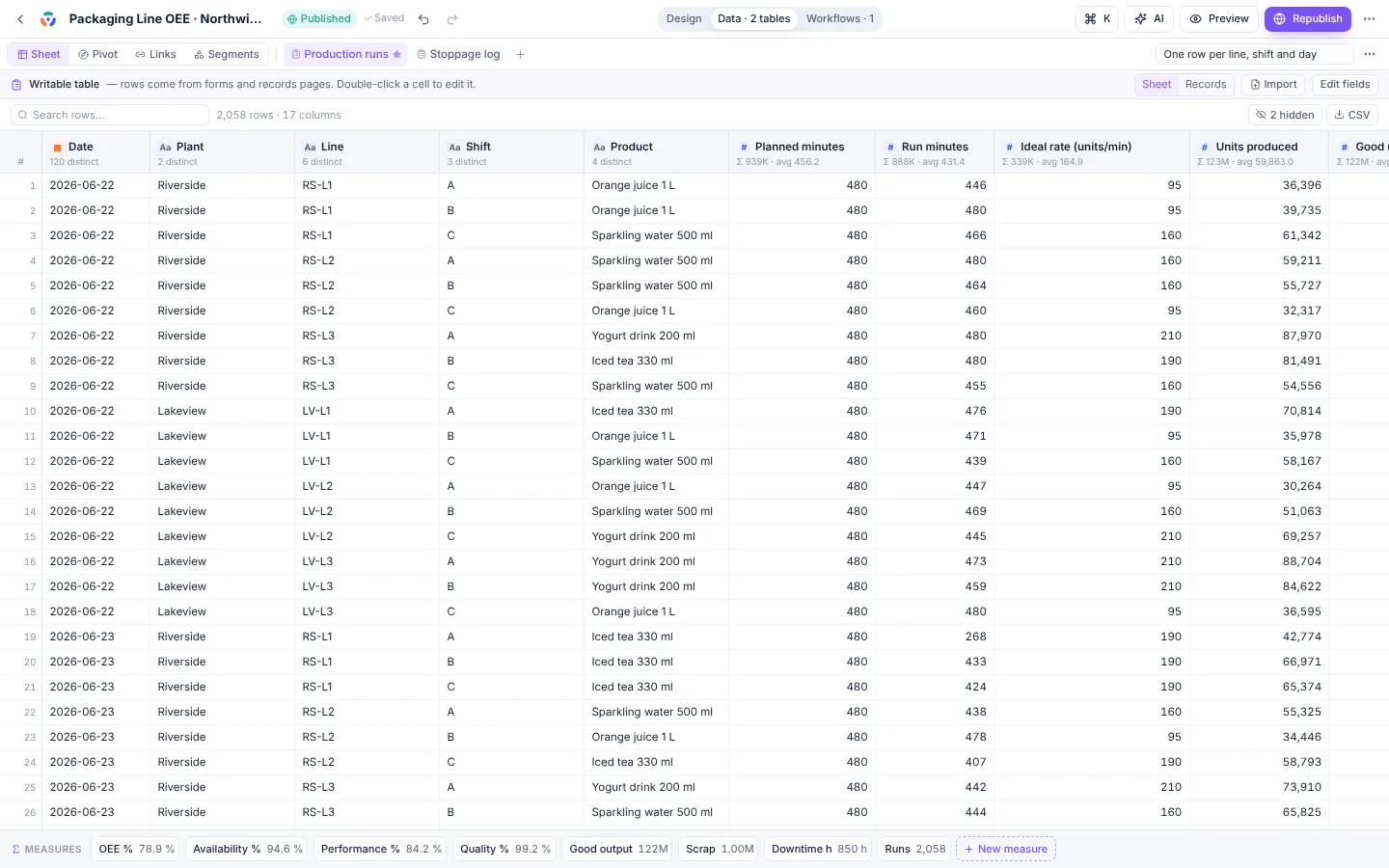
data / production runs
Data workspace: a sheet of production runs with typed columns and a measures strip

Excel and CSV, done properly

Header rows found automatically, every sheet becomes a table, numbers, dates, currencies and yes/no recognised. Large workbooks parse on the server.

Databases

SQL Server and Azure SQL, PostgreSQL, MySQL and MariaDB. A read-only query, a preview, then add the table. Credentials are encrypted on your server.

Live tables for large databases

Leave millions of rows where they are. Page filters and each person’s access rules run inside the database, totals can be added up there, and only the result comes back.

Plant systems

OPC UA servers and gateways, MQTT topics, Modbus TCP registers, AVEVA PI through the PI Web API, and InfluxDB. Current values with a kept history, or the historian’s own records.

APIs and online files

REST and JSON APIs with automatic paging, Google Sheets and Drive, SharePoint and OneDrive, or any CSV and Excel link.

Refresh on a schedule

Plant sources every minute; others every 15 minutes, hourly, six-hourly or daily. Databases and APIs can fetch only the rows added since the last refresh.

Tables people write to

App tables collect records from forms, with text, numbers, dates, choices, people, photos and files. Bulk import from Excel too.

A sheet you can read

Virtualised rows that scroll smoothly through tens of thousands of lines, column stats, sort, search, rename and calculated columns.
Define OEE once. Use it on every card.

Measures are the formulas your plant already argues about: OEE, yield, specific energy, PPM. Write them once per table and every chart, KPI and AI summary uses the same definition.

Measures

Ratios evaluated per group at query time, so a plant’s OEE is never the average of its lines’ percentages. Formats, units and folders.

Describe it in words

“Rejects as a percentage of production.” The AI writes the formula, shows a preview, and you decide whether to keep it.

Links between tables

Lookups like VLOOKUP, composite keys, and date-range joins for things such as the shift roster or the price list in force on a date.

Time intelligence

Month, quarter and year to date, running totals, same period last year, change and percent change. Your fiscal year, April to March or any other.

Two tables on one chart

Plot production from one table against downtime from another on the same axis without building a merged sheet.

Segments

Named groups picked by a rule: top ten SKUs, lines under target, suppliers above 500 PPM. Use them as filters anywhere.

Ask the next question without filing a request.

Every published board is interactive. Clicking narrows the whole page; drilling goes one level deeper; the rows behind any number are one click away.

live recording

Cross-filter

Click a bar, a slice, a month or a line and every card on the page follows. Chips show what is filtered; one click clears it.

Drill-down

Plant, then line, then shift, with a breadcrumb back up. Open the rows behind any point as a table.

Page filters

Plant, line, product and date ranges with presets such as last 12 months, this fiscal year and year to date. A play button steps through months.

Slicers on the canvas

Buttons for each value of a column, sized for a touch screen in the control room.

Pivot

Several measures, group by, split, filter, sort and top N, with the query shown in plain words.

Event markers

Dashed lines on a date axis: the annual shutdown, the new die, the change of supplier.

Sixty card types, chosen for the shop floor.

Charts for comparison, trend, composition and distribution, process flows with live numbers on each step, and the status lights, tickers and clocks control rooms rely on.

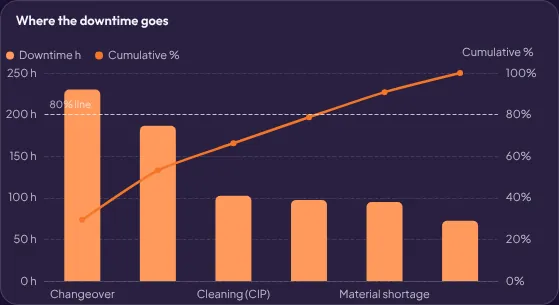
Pareto chart of downtime reasons
Pareto of downtime reasons
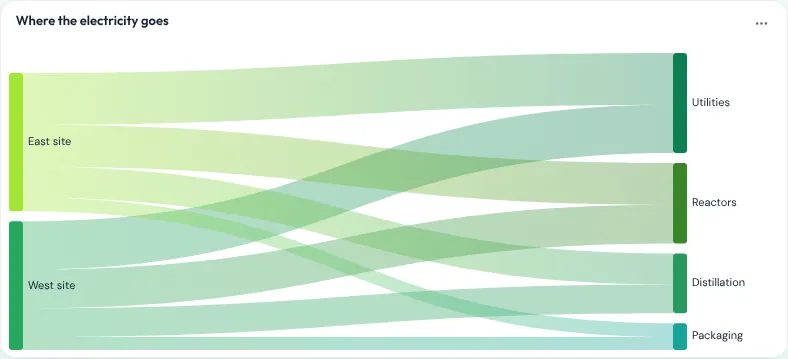
Sankey diagram of energy flows
Sankey of where the energy goes
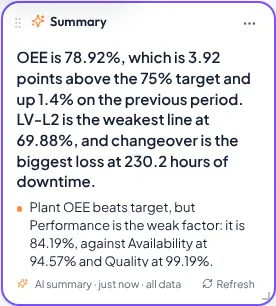
AI summary card with the main finding
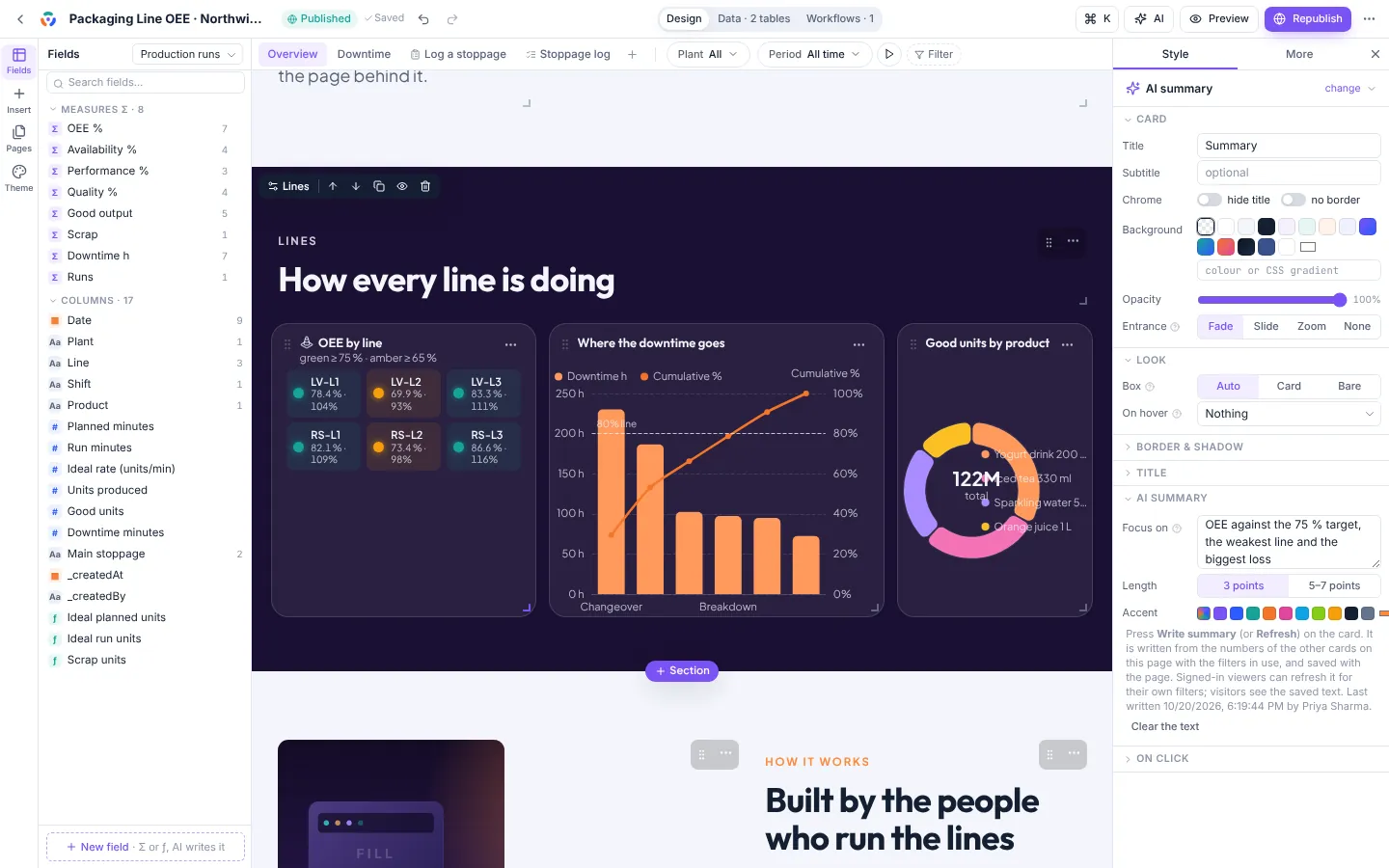
AI summary of the page
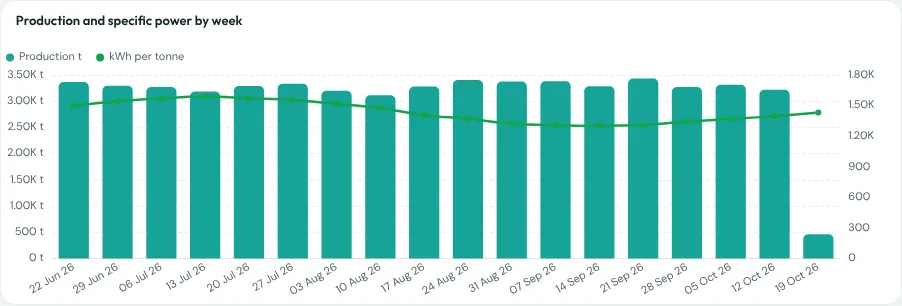
Combo chart with bars and a line
Output against target, two axes
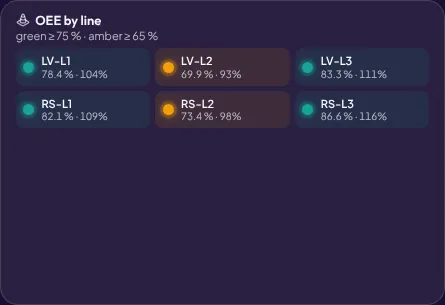
Status lights per line
Status lights against thresholds
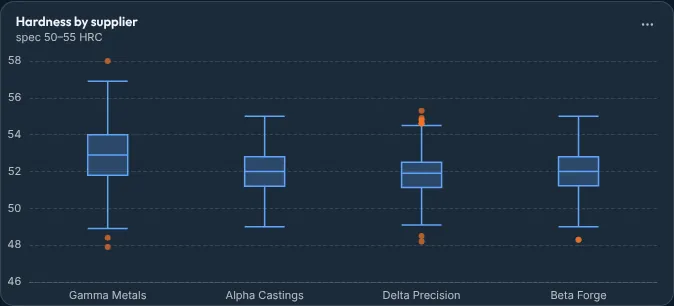
Box plot showing a quality spread
Box plot of a quality spread
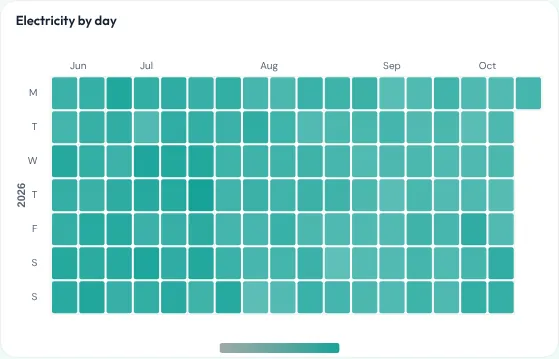
Calendar heatmap
Calendar of daily output
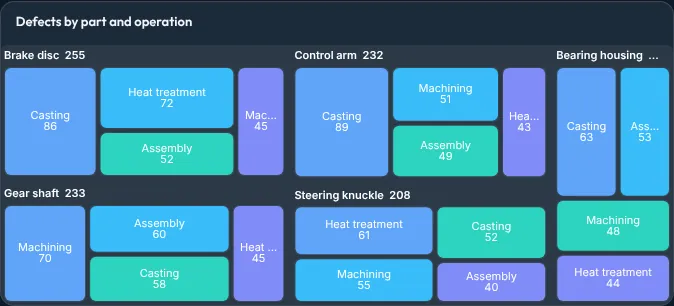
Treemap of cost by category
Treemap of cost
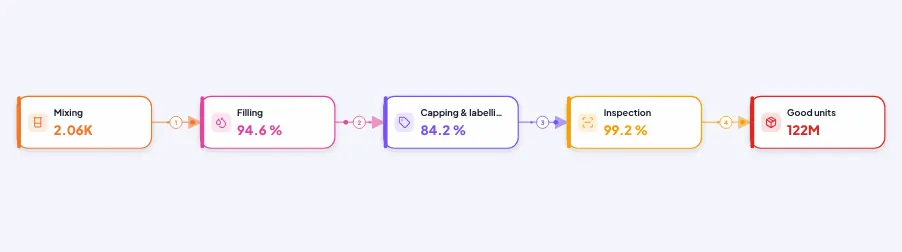
Process flow with live numbers on each step
Process flow with live numbers

Charts

Column, bar, stacked, combo, waterfall, Pareto, lollipop, line, area, calendar, pie, donut, rose, treemap, sunburst, funnel, scatter, bubble, histogram, box plot, heatmap, radar and Sankey.

Numbers

KPI tiles with sparklines and targets, gauges, progress and bullet bars, leaderboards, status lights, tickers, a shift clock and countdowns.

Tables

Sortable tables with conditional colour and a pivot table with subtotals.

Your brand

Ten themes, palettes, fonts, your logo, backgrounds and design kits such as Industrial dark and Plant ops.

Forms on the floor, records in the office.

Build the stoppage log, the defect report or the handover in the same project as the board that reads it. A record submitted on a phone shows up on the dashboard straight away.

  • Form pages with required fields, show-only-if rules, number limits and formats.
  • Records pages with search, status chips, a detail panel and comments.
  • Fill a form from a photo of a paper slip or a label with AI.
  • Workflows, approvals and an inbox for each person.

Apps and workflows in detail

A plant website that reads live data.

Pages can be stacks of full-width sections: a hero, the numbers of the week, a gallery, milestones, an FAQ and a contact form, with a menu on top. Every number in them comes from the same model as the dashboards.

works.orion-steel
The Orion Steel works portal from the trial, scrolled top to bottom.

Sections

Twenty presets across hero, content, data and closing bands, each with its own background, image, video or gradient.

Navigation

Top bar or sidebar, a menu that floats over the hero, links to sections on the same page, hidden pages.

Design with AI

Describe the page; the AI picks sections and a design kit and writes the copy, then you edit it.

Phones

Every page stacks into one readable column on a phone, in the order you set.

Publish once. Show it everywhere.

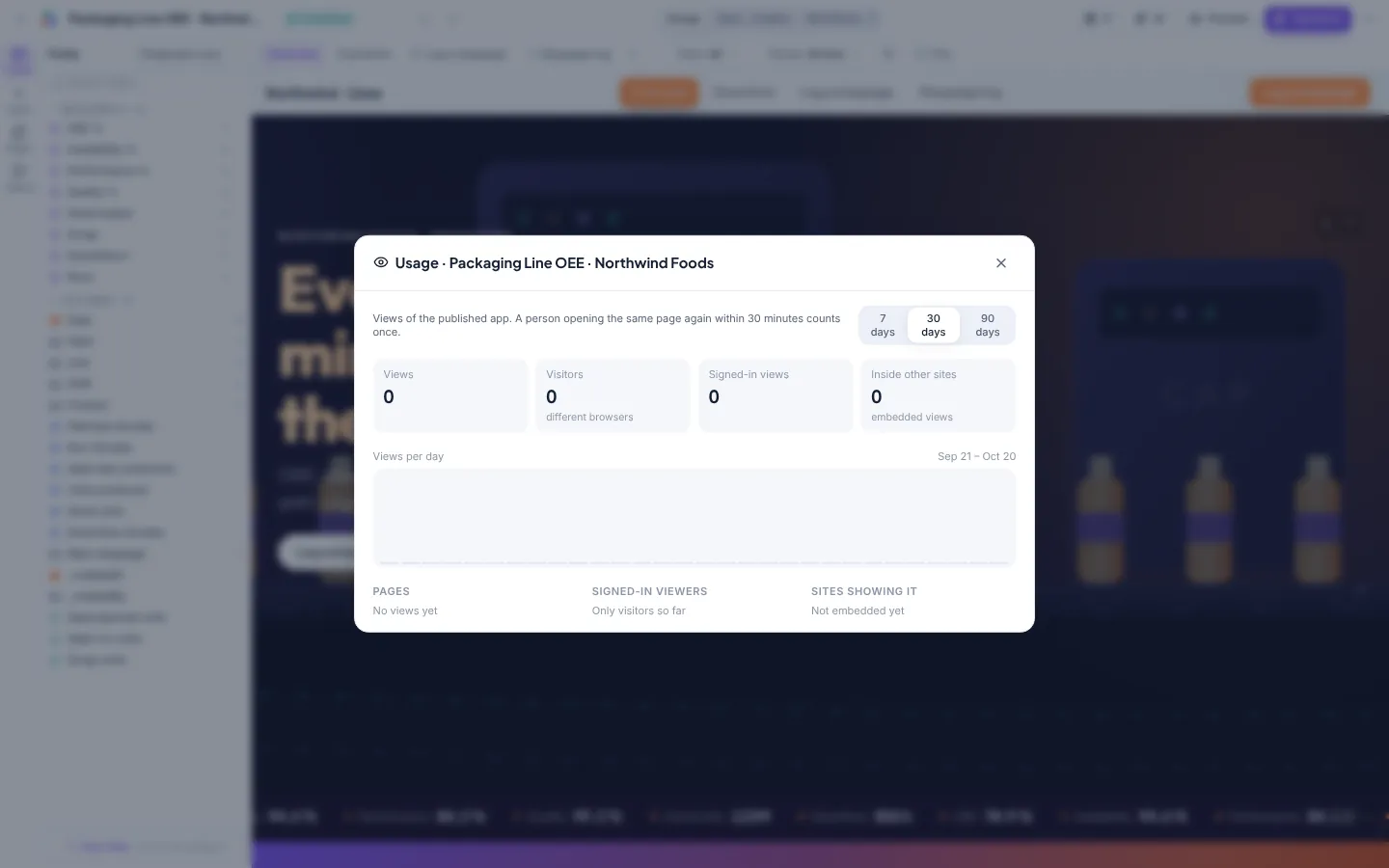
A published app has a link, a phone layout, an embed code for SharePoint or the intranet, and a usage report so you know who reads it.

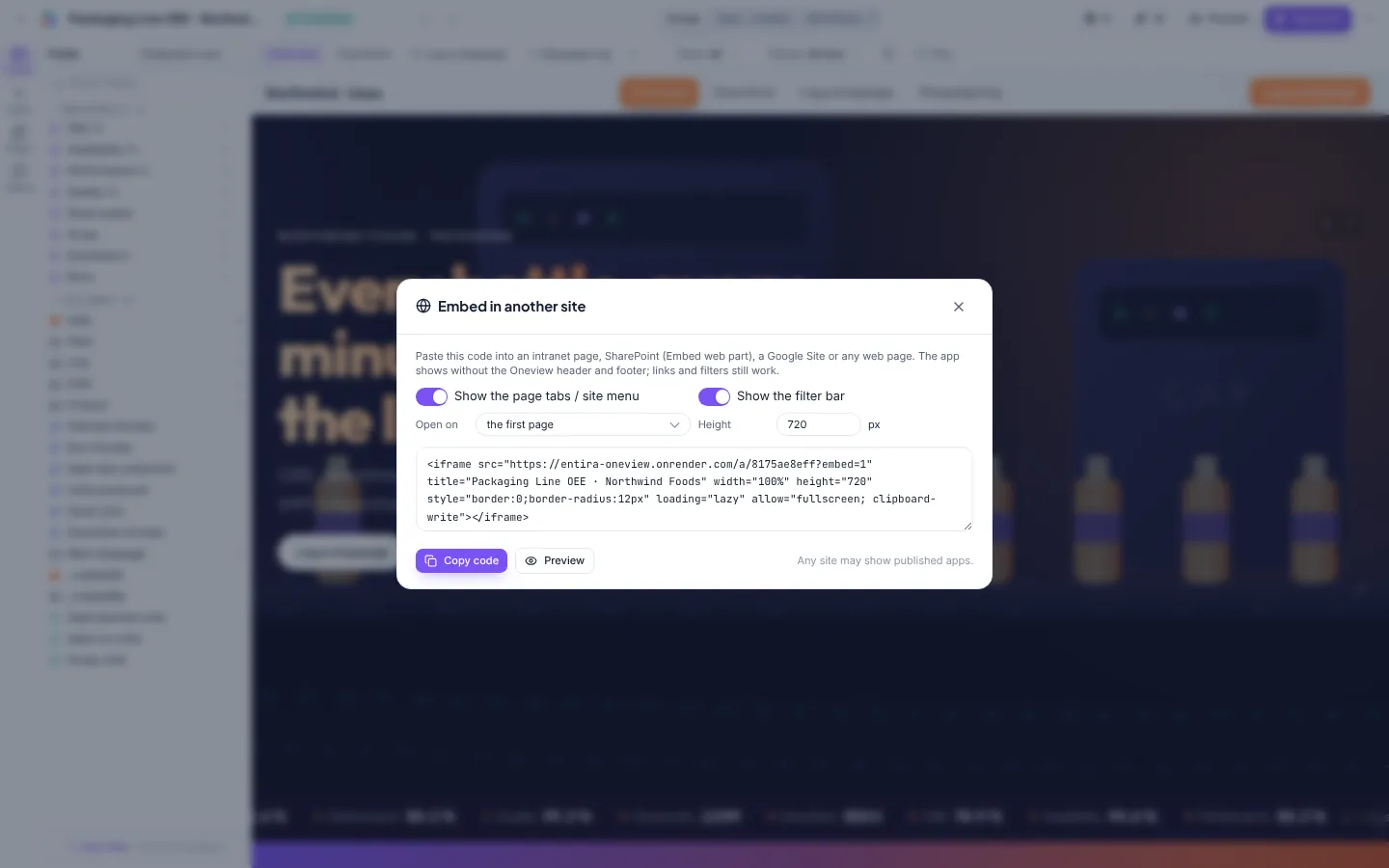
embed in another site
Embed dialog with iframe code and options
usage
Usage report with views per day and top pages

Links and full-screen

A link for the control-room TV, a full-screen mode and a public gallery for apps everyone may see.

Embed

Choose page tabs, the filter bar, the start page and height. Only the sites you approve may show your apps.

Export

One interactive .html file of an app that filters and drills offline, PNG of a page and CSV of the rows behind a card.

Usage

Views, visitors, signed-in views and the sites showing each app over 7, 30 or 90 days.

An editor that stays out of the way.

Fields on the left, the page in the middle, the selected card’s settings on the right. Drag a field onto a card, double-click a title to rename it, press ⌘K to find any action.

studio
Studio with fields drawer, canvas and inspector

Direct editing

A toolbar above the selected card, insert next to the selection, tidy layout, undo and redo.

Data lens

A see-through preview of the rows a card reads, with the columns it uses highlighted.

Templates and kits

Save an app or a section as a template for the whole workspace; reuse design kits across projects.

Version history

A copy every ten minutes while you edit, one at every publish, and named versions you can restore.

Editing together

See who else is in the studio and which card they are on. Changes saved at the same moment are merged, never lost.

Comments and phone layouts

Comment on any card and @mention a colleague. Arrange, hide and size cards for the phone view without touching the desktop layout.

Reviews and approval

Ask colleagues to review a board; they step through the open comments and approve or ask for changes. Publishing can wait for the approval, and viewers keep the approved version meanwhile.

Try it on your own numbers today.

The online trial opens with five ready-made plant apps and room for one project of your own. Upload a shift report and see your first board in minutes. When you are ready, Oneview installs in your datacenter or your own cloud.